Now that I had the iOS and iPadOS apps ready, I needed to get them reviewed and approved by the App Store. It took longer and turned out to be more complicated/tasking than I expected — from long periods waiting for review, to dealing with regional regulatory hurdles/policies/rules.
Here is what going through the App Store review process actually looked like in practice.
The Waiting Game
The app sat in "Waiting for Review" for about a week with zero movement. I eventually submitted an escalation request, after which the status finally shifted to "In Review." I had to escalate twice more during the process. In all, it took about 18 days from my submission to the app being approved.
Regional Permits/Compliance
- EU Compliance: Offering a paid app meant completing an additional regulatory form specifically to list it in European App Stores. The form isn't long or that complicated but it was simply an extra form and it required you to list a phone number that would be displayed on your App listing.
- Mainland China Restriction: The app was flagged for accessing book or magazine content, requiring a permit to distribute in Mainland China. Rather than navigating local publishing approvals, I simply excluded Mainland China from my target distribution regions.
The Privacy Label Misconception
One of my core goals while building BiblePace was ensuring zero user tracking. However, mapping privacy-first functionality into Apple’s required privacy form created a surprisingly alarming label.
Note: A login is entirely optional and is only required if you choose to sync your data so it is accessible via multiple devices
| What BiblePace Does | Why It Happens | Apple's Classification |
|---|---|---|
| Storing email on Google/Apple login | Required to associate synced data with an account | Contact Info Collection |
| Saving reading progress to the cloud | Necessary so users can resume reading across devices | Usage Data Collection |
| Generating a DB user ID | Standard database architecture to partition user data | Uniquely Identifying a User |
By technical definition, Apple’s classifications are correct. But from a user's perspective, reading the generated App Store badge gives a completely wrong impression about how intrusive the app actually is:
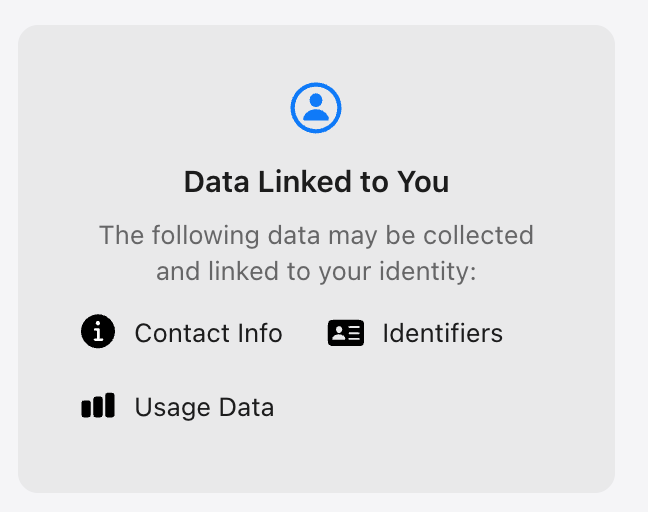
Going through this process made me realize that those store badges don't always mean an app is doing something sketchy—sometimes completely innocent, privacy-conscious features trigger warnings that look far worse than they are.
UI Requirements: Sign in with Apple
If your app supports third-party social logins and includes Apple, Apple enforces strict placement rules in their Human Interface Guidelines:
Make a Sign in with Apple button no smaller than other sign-in buttons, and avoid making people scroll to see the button.
Ensuring the Apple button shared equal size and placement alongside Google Sign-In was required to pass UI checks.
The Licensing & In-App Purchase Battle
My biggest hurdle came down to cross-platform license keys:
- The Web Setup: BiblePace runs on the web, iPhone and iPad, and a single license works everywhere. To protect privacy, users don't need an account—they simply enter a license key into a text field. Buying on the web via Stripe is much cheaper (Stripe takes about 2.9% versus Apple's 30% cut).
- First Rejection: Based on Gemini suggestion, I initially didn't offer a way to buy the license directly in the iOS app. Apple flagged this immediately: all digital purchases inside an iOS app must use Apple's In-App Purchase (IAP).
- Second Rejection: I added IAP to the app, but kept the text field so web buyers could still enter their existing license keys. I removed any mention of being able to purchase a license on the Web. Apple flagged the app a second time for keeping the license input field.
- The Resolution: Instead of stripping out web license activation, I kept the design, wrote a detailed response explaining why the field was essential for cross-platform users, and resubmitted. Apple accepted the explanation and approved the app.
Note: When you set up In-App Purchases for the first time, remember that the IAP entry itself must be submitted for review alongside the app submission build.